

Having trouble connecting your printer?
Stuck on a Wi-Fi router connection?
Can't sync or log in to your email?
Is your computer running too slow?
Stuck on a Windows Update screen?
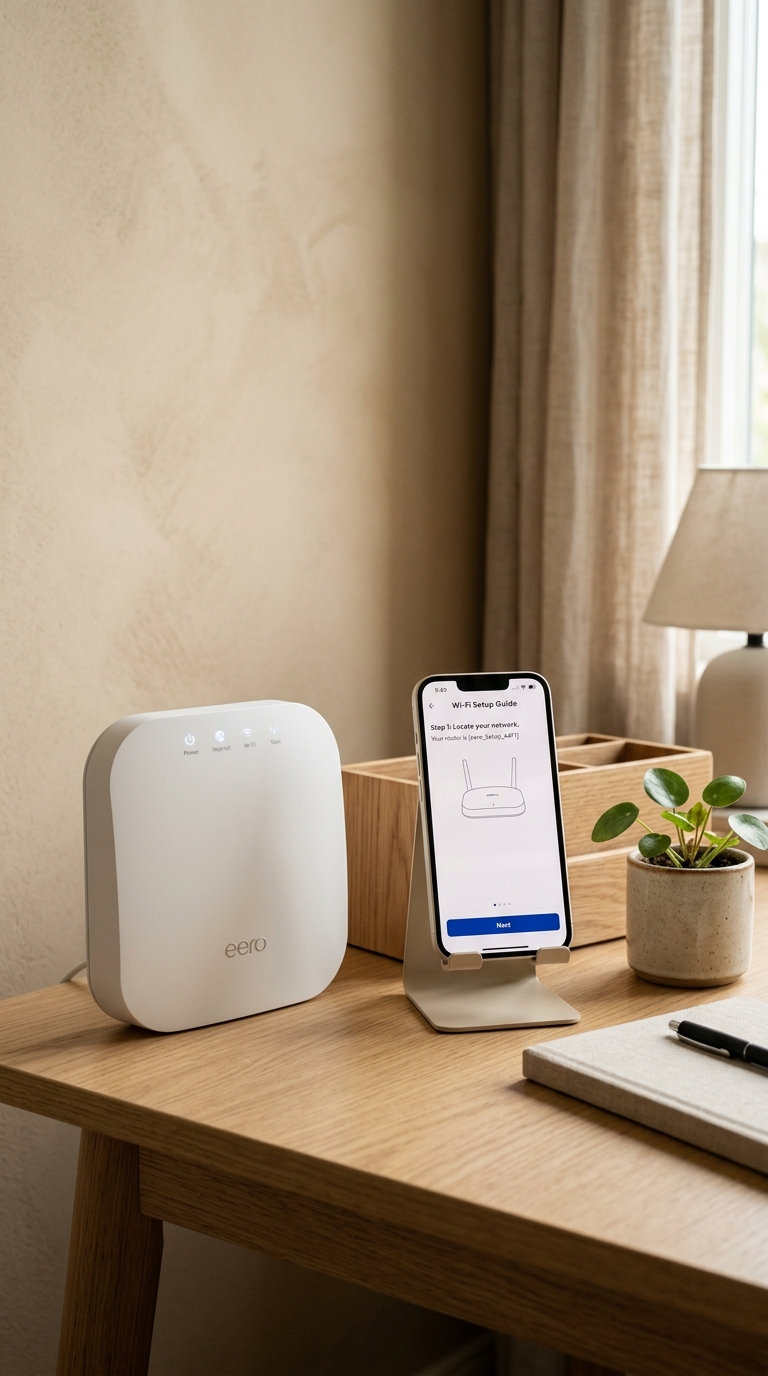
Sourced Directly From Official Portals
We read, test, and simplify official tech resources. All guides are compiled directly from verified manufacturer documentations (including Microsoft, HP, Intel, Canon, and Epson). We do not provide phone support, remote access connections, or software sales—just clean, reliable, and free step-by-step knowledge.

How your computer talks to your devices.
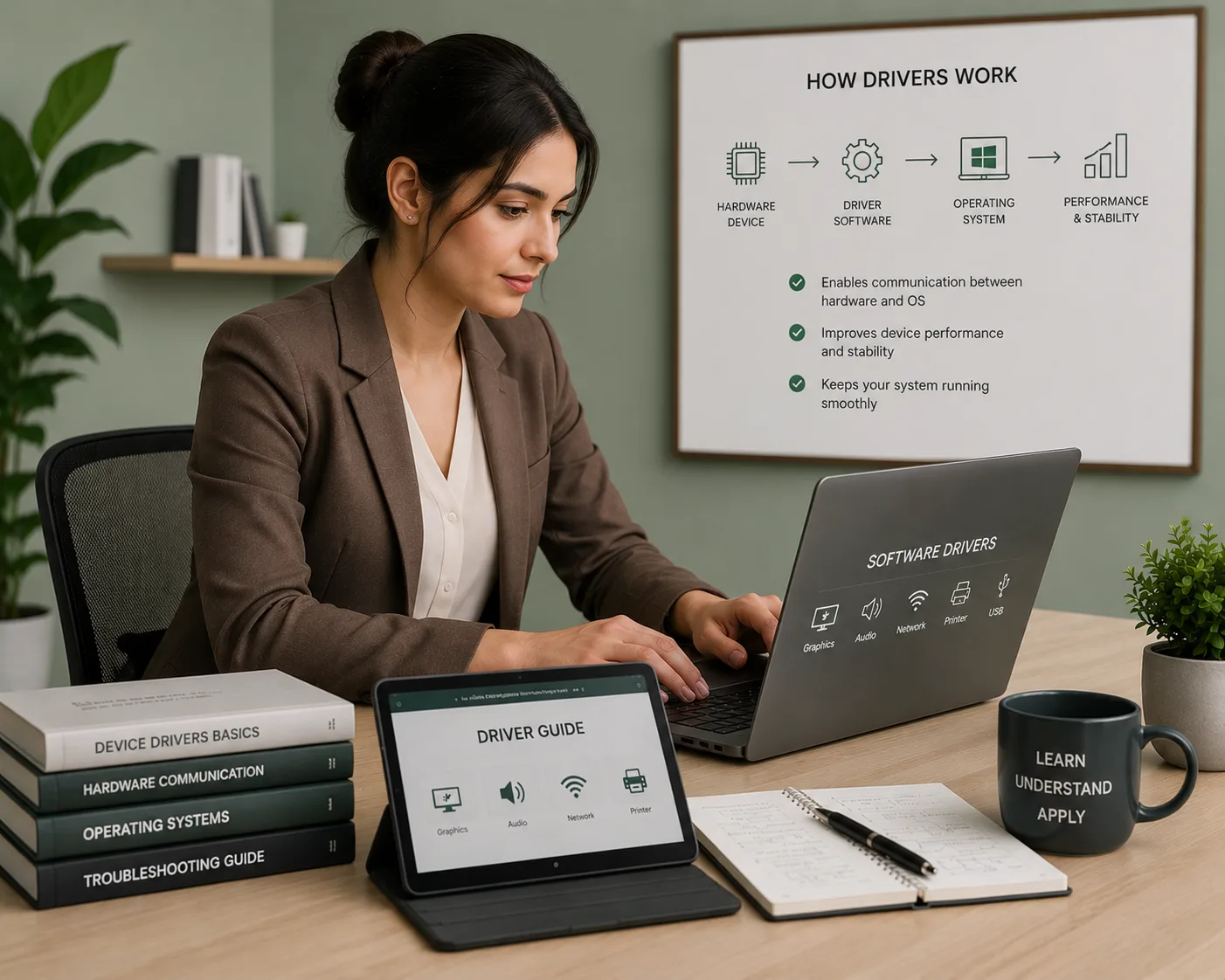
Whenever you print a document or connect to a Wi-Fi network, your operating system relies on specialized translators called drivers. Here is how that connection functions in real time.

This guide breaks down complex system communications into visual pipeline steps, derived entirely from official hardware standards.
Printer status offline or not printing?
When you click "Print" but nothing happens, or the printer status says "Offline", the translation between computer and printer is broken. Reinstalling the printer driver resolves this instantly.
Wi-Fi drops or shows connected but no internet?
If your Wi-Fi keeps disconnecting, shows no internet access, or drops signal randomly, the computer's network driver is failing to process packets. Updating the network adapter driver fixes this.
Computer running slow, lagging, or freezing?
Outdated display, processor, or audio drivers cause lagging, freezing, and system slowdowns. Installing correct driver updates resolves hardware bottlenecks and restores maximum speed.
Select a topic and start reading.
Choose from simple, verified educational guides about printers, drivers, routers, email syncing, and Windows update messages. Sourced from official manufacturer portals.
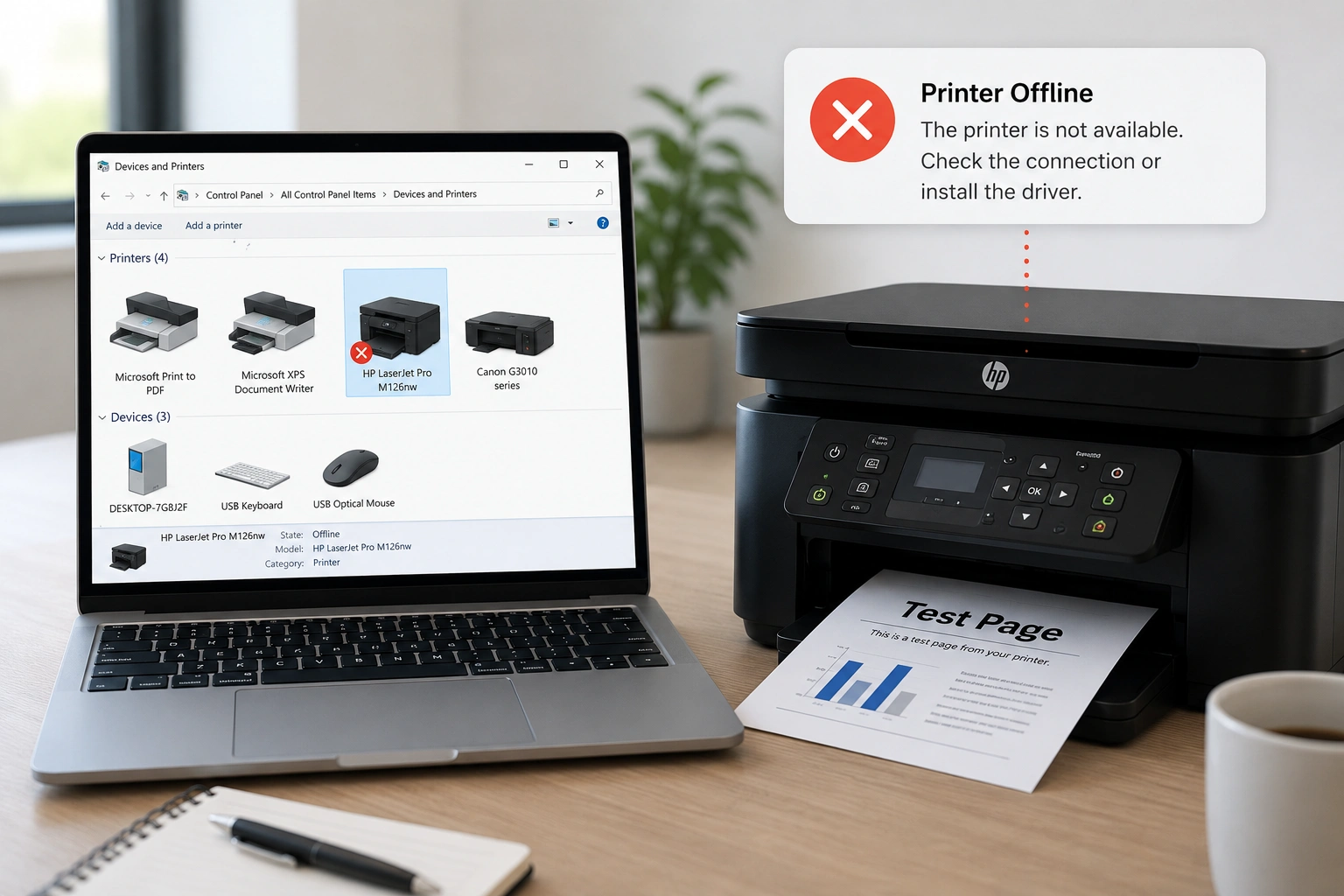
Printer status offline or not printing?
Connecting a printer involves setting up physical or wireless communication. This guide explains how operating systems interface with printer drivers via USB or local Wi-Fi networks.
// QUICK REFERENCE STEPS:- Open Windows Settings > Devices > Printers & Scanners.
- Ensure Default Printer is selected & "Use Printer Offline" is unchecked.
- Restart the Print Spooler service via services.msc to clear stuck queues.
- Reinstall the driver from the official manufacturer support page if offline.
Missing drivers or device not recognized?
Drivers act as software interpreters between the operating system and hardware. Without them, plugged-in devices like adapters or graphics cards cannot interpret instructions.
// QUICK REFERENCE STEPS:- Press Win + X and select Device Manager to inspect driver status.
- Check for yellow warning triangles indicating missing or corrupt drivers.
- Right-click and select "Update driver" to automatically scan online.
- Install official chipset and controller drivers to restore system speed.
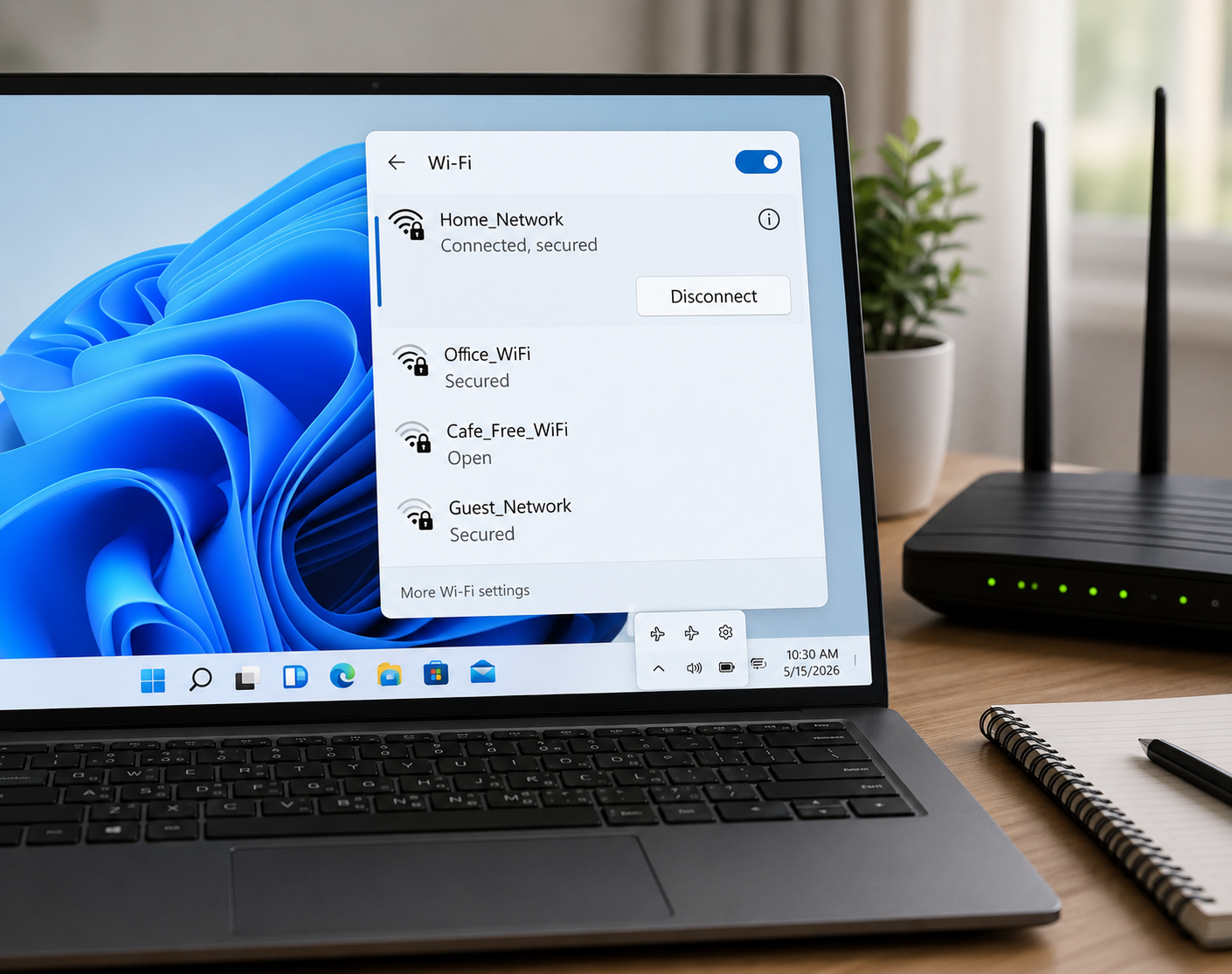
Wi-Fi drops or connected with no internet?
Wireless networking relies on routers transmitting packets to your PC. This guide explains how router signals work, what indicator lights mean, and how to fix connection drops.
// QUICK REFERENCE STEPS:- Verify router lights: DSL/Fiber lights must be solid green (orange means no link).
- Open Command Prompt and run "ipconfig /renew" to refresh DHCP IP allocation.
- Run "ipconfig /flushdns" to clear corrupt DNS cache resolving loading errors.
- Access router gateway (192.168.1.1) to configure security protocols.
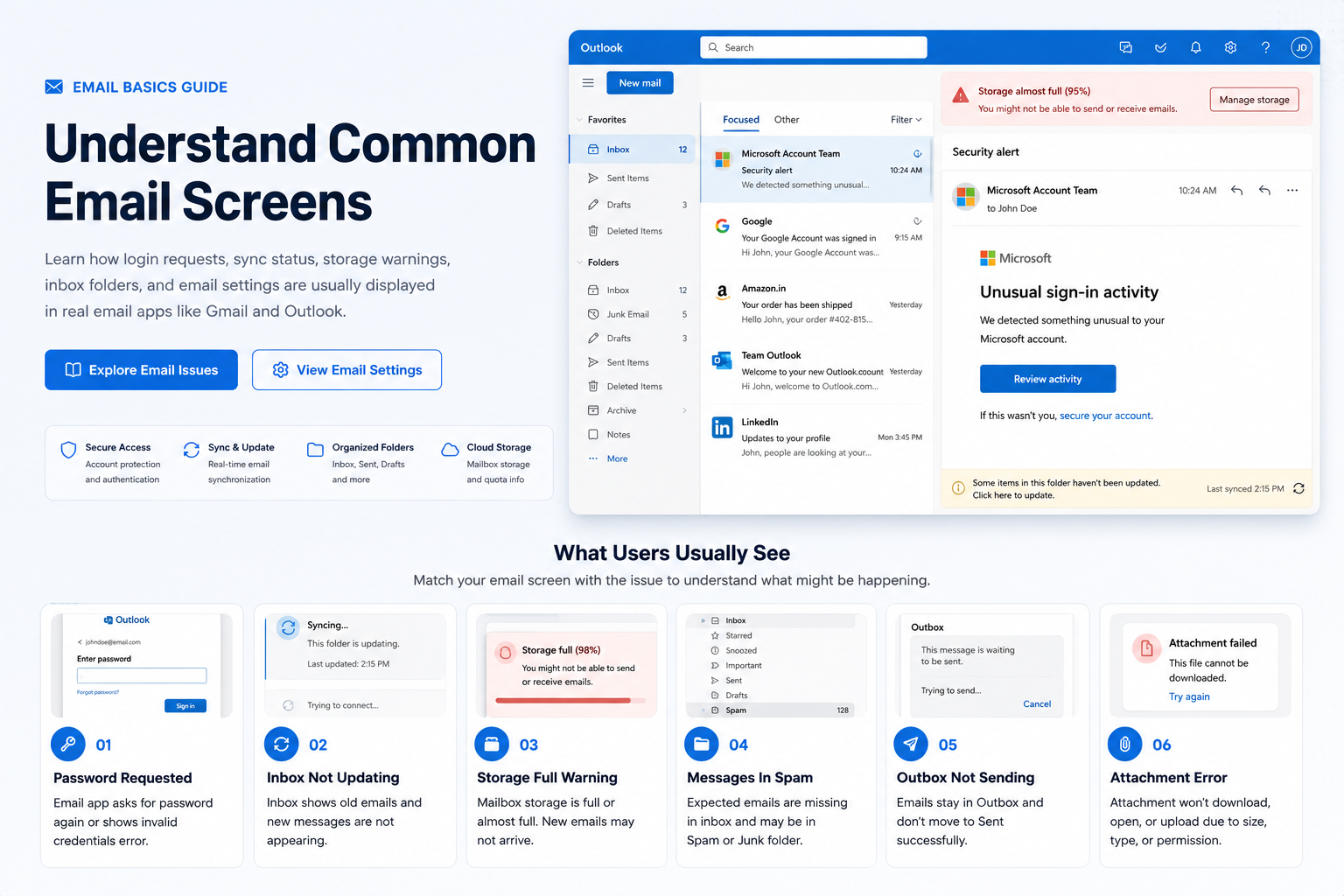
Email client failing to sync or send messages?
Email sync matches local application folders with the remote mail server. Learn server settings, spam folders, and connection port configurations to troubleshoot email errors.
// QUICK REFERENCE STEPS:- Use IMAP (Port 993 with SSL/TLS) instead of POP3 for folder synchronization.
- Configure Outgoing SMTP (Port 465 or 587) with SSL/TLS encryption for mail sending.
- Generate App Passwords or use OAuth2 if login repeatedly fails on older clients.
- Double-check spam/junk folders and storage limit capacity if emails fail to arrive.
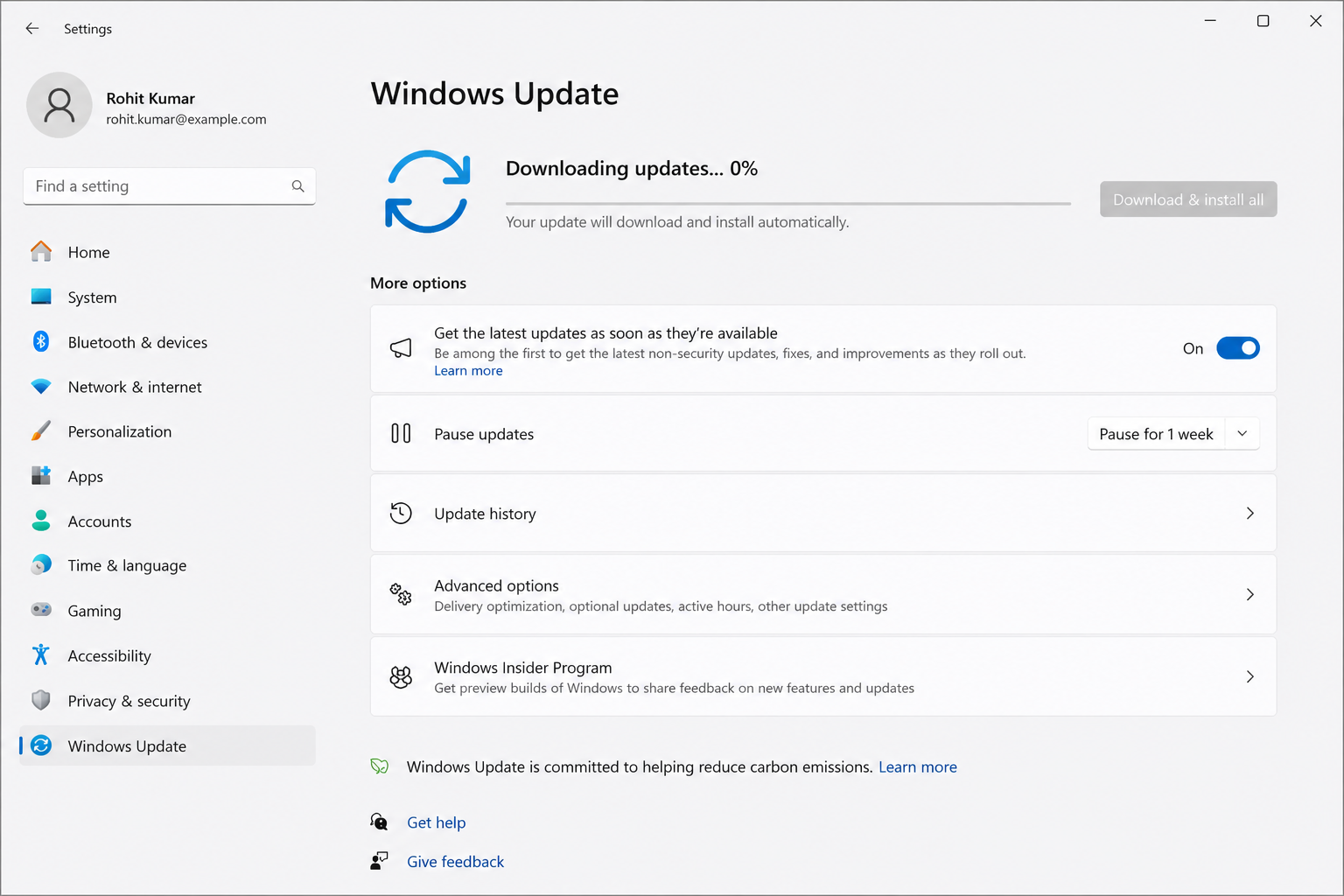
Windows updates stuck or looping restarts?
Operating system updates patch bugs and secure hardware drivers. This guide explains how to fix update errors, stuck downloads, and pending installations safely.
// QUICK REFERENCE STEPS:- Navigate to Settings > Update & Security > Windows Update to view pending logs.
- Run the official built-in Windows Update Troubleshooter to clear loop cycles.
- Delete download cache in C:\Windows\SoftwareDistribution\Download if stuck.
- Configure Active Hours to prevent automatic restarts during work sessions.

Can't find your specific device issue?
If you have a unique printer model, network configuration, or update loop error, send us the details directly. Our mentors will simplify the steps and write a custom guide for you.
// EXPERT MENTOR ASSISTANCE:A simple place to learn device basics.
Dashing Tutor shares clean, easy-to-read guides about printers, routers, Wi-Fi connectivity, computer performance, and system updates. We explain hardware behaviors simply, without technical pressure.
Our Mentorship Promise
We read through thousands of pages of official manufacturer guides so that you do not have to deal with tech support phone queues or paid diagnostic tools. Just direct, simplified steps for your self-learning.Concept-First Explanations
We clarify what a device does first, helping you understand the "why" before any setup steps.
Jargon-Free Vocabulary
No confusing technical scripts. We speak in natural, everyday vocabulary to keep learning stress-free.
Direct Official Sources Only
We reference Microsoft, Google, or official portals directly, ensuring absolute accuracy.
What We Cover vs. What We Exclude
Note: We are a 100% independent resource. We have no affiliation, support relationship, or partnership with Microsoft, Google, HP, Canon, Epson, or other hardware brands. All articles on this site are for educational purposes.
Clear answers before you read.
Learn what this website provides, how the content should be understood, and where readers can find official documentation for deeper reference.
Notice: This website is an educational resource. No phone numbers, paid troubleshooting services, remote logins, or software repairs are offered on these pages.
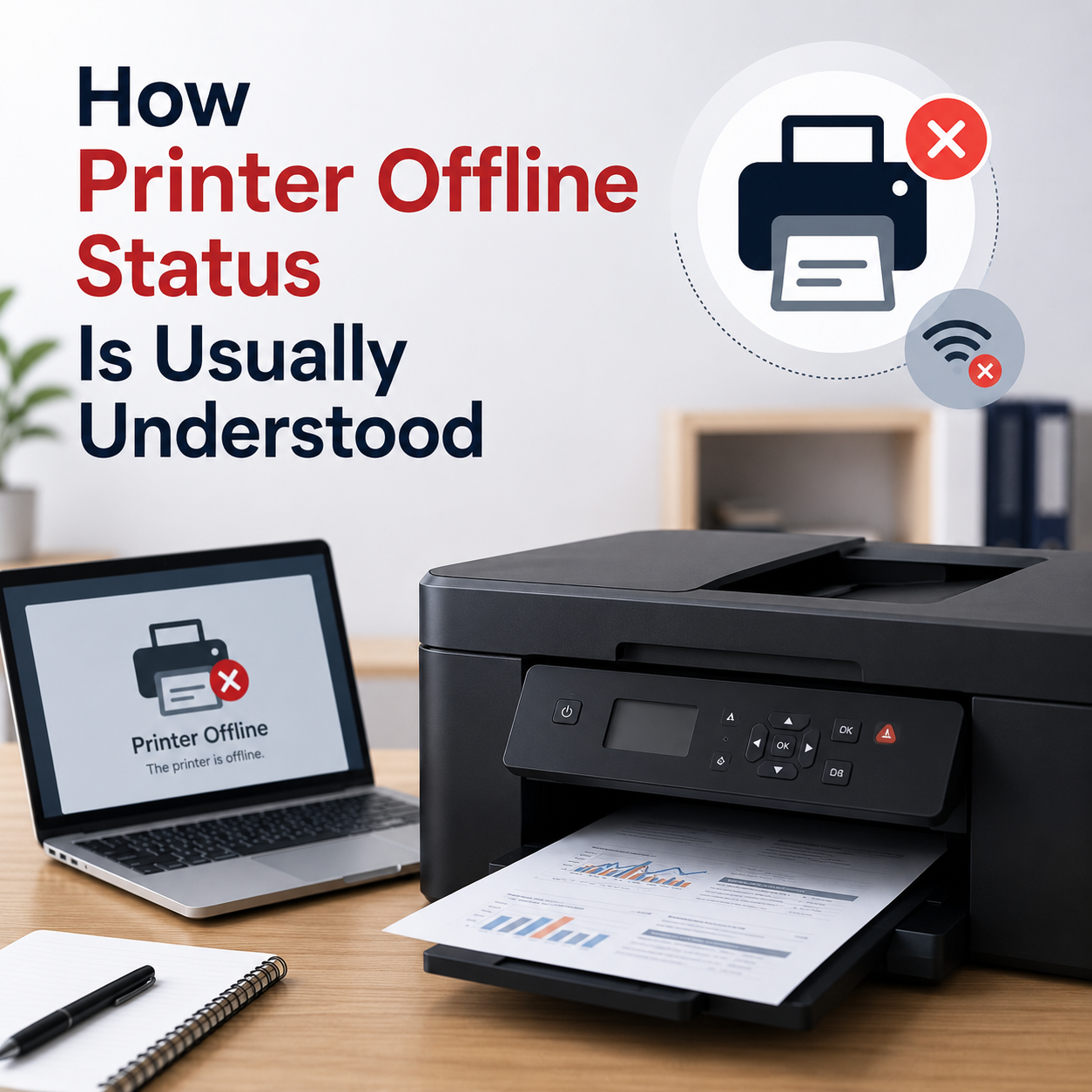
How Printer Offline Status Is Usually Understood
Learn what offline status may mean, how printer queues work, and why connection or default printer settings matter.
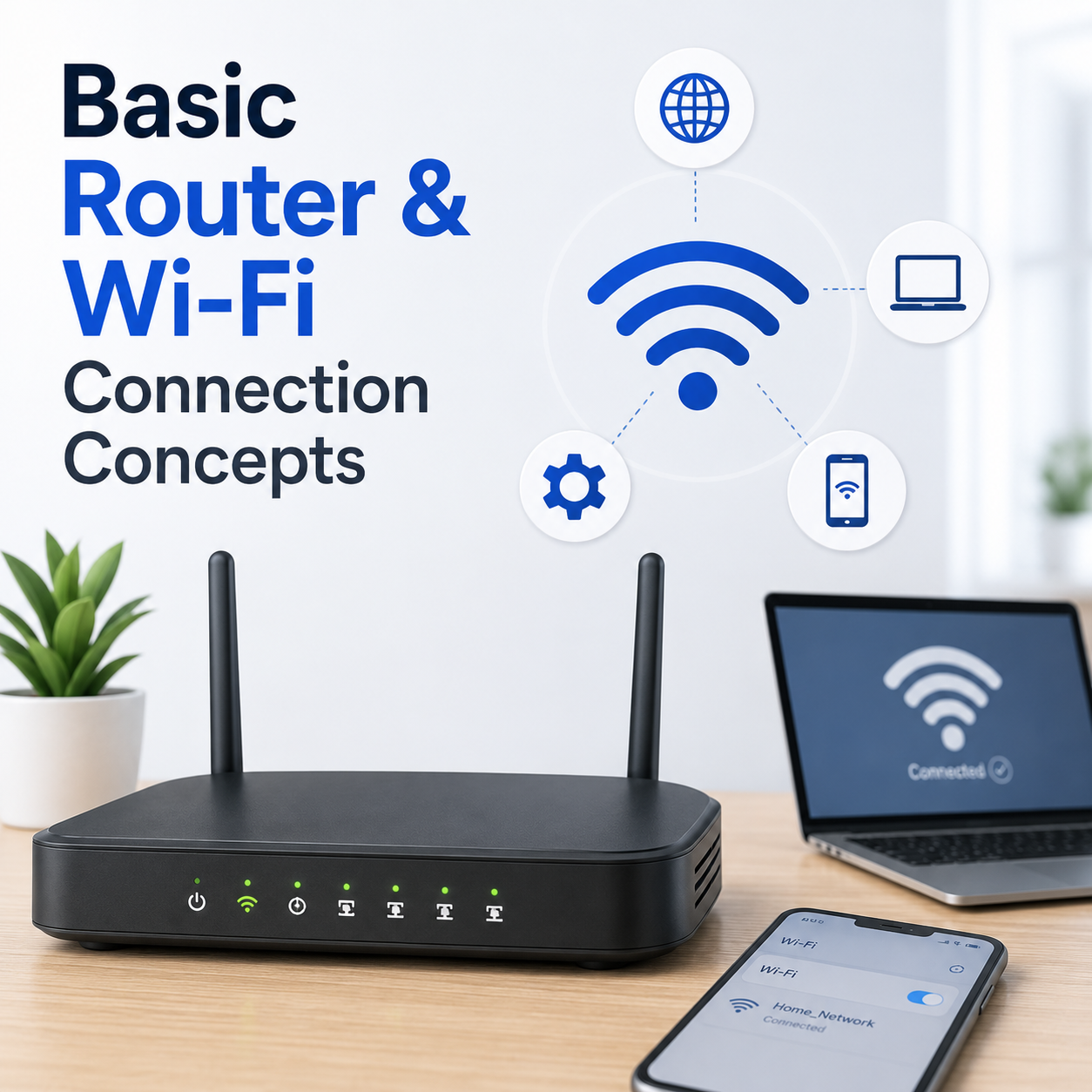
Basic Router and Wi-Fi Connection Concepts
Understand network names, Wi-Fi signals, router lights, connection status, and common limited connectivity messages.
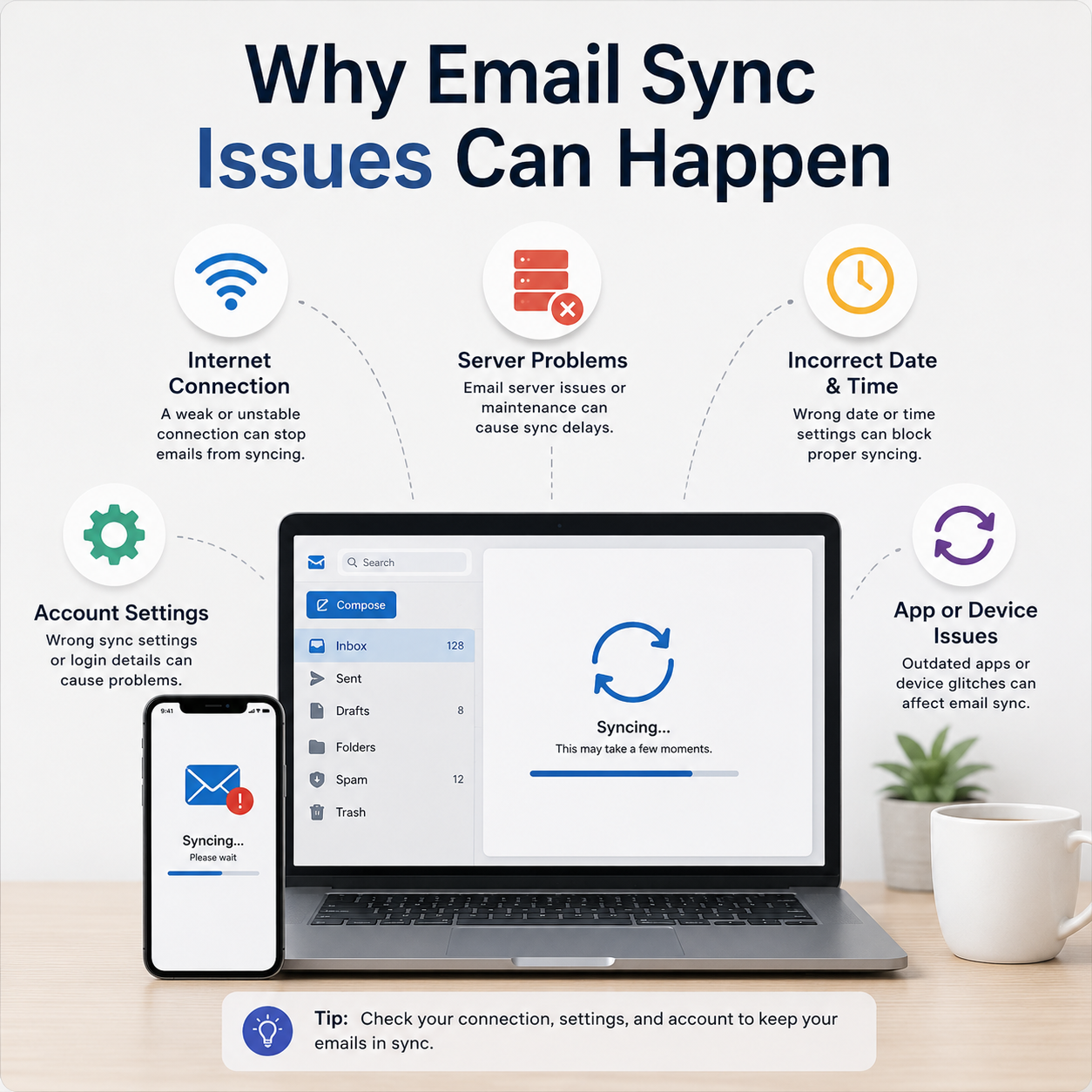
Why Email Sync Issues Can Happen
Read how inbox folders, account access, sync settings, spam folders, and mail app behavior are commonly understood.
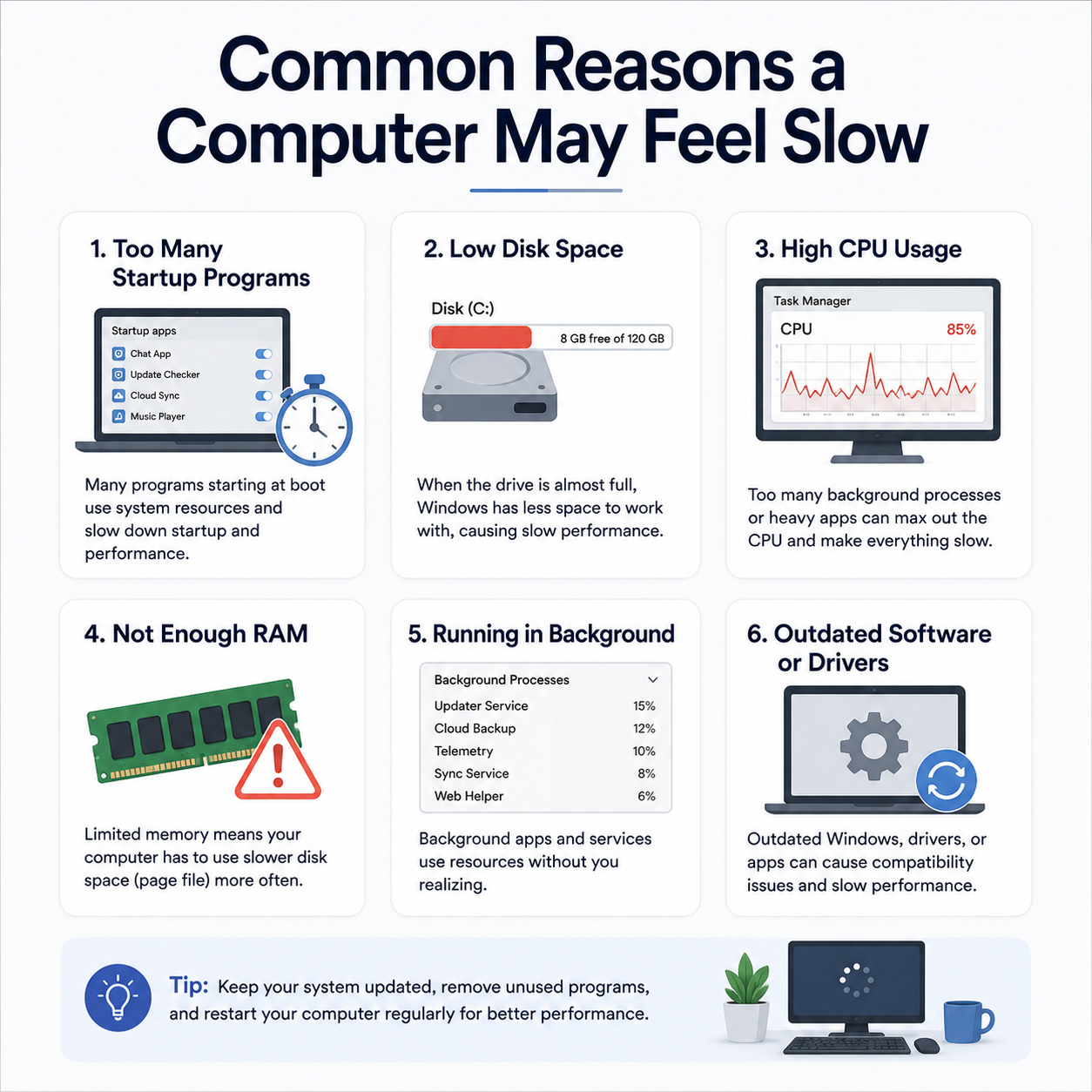
Common Reasons a Computer May Feel Slow
Learn common concepts behind startup items, storage space, background activity, updates, and device driver behavior.
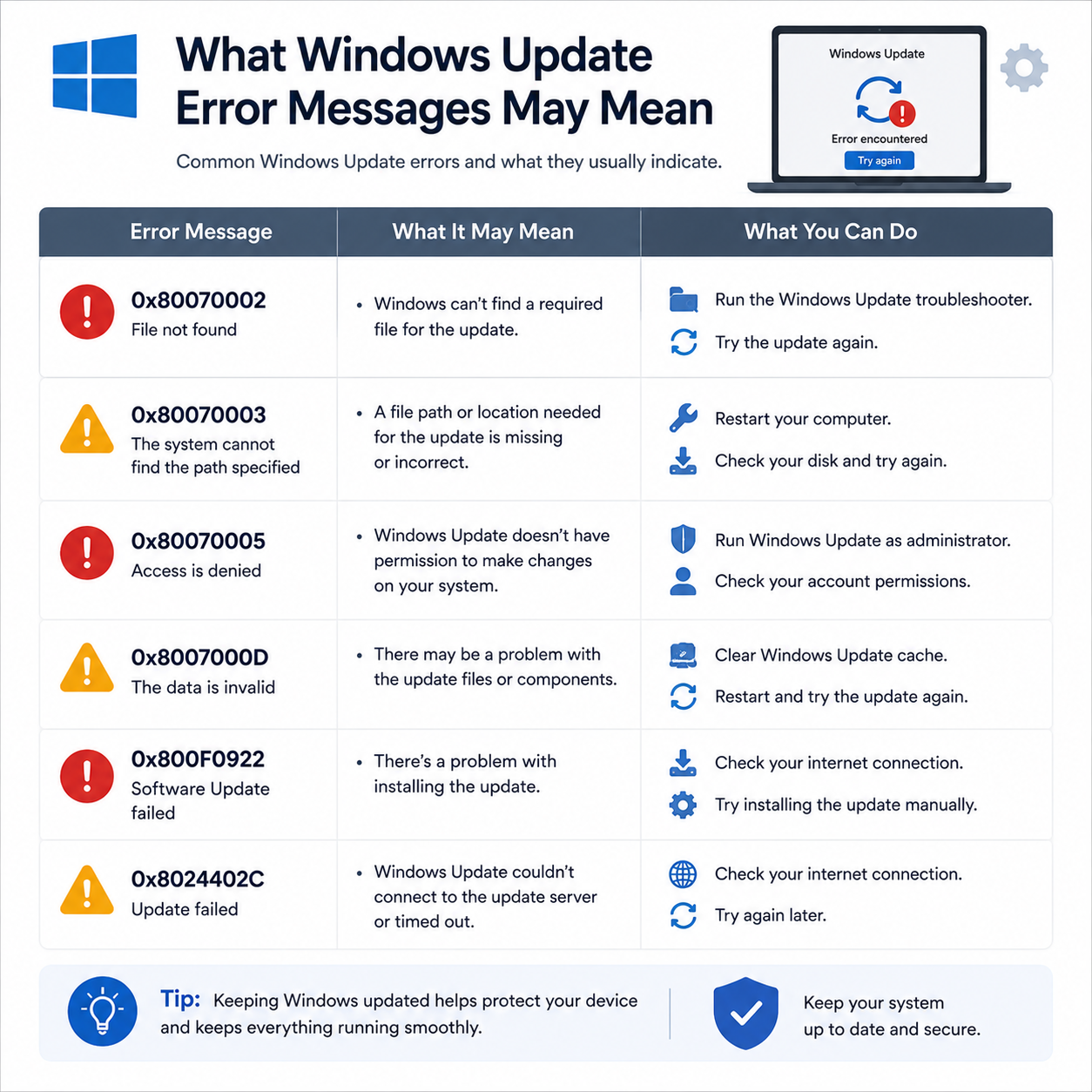
What Windows Update Error Messages May Mean
Understand update status, pending messages, restart prompts, update history, and common update-related terms.
Read practical learning articles.
Explore simple, visual reference checklists based on verified manufacturer guidelines.
Printer Spooler Reset Printer
If offline, restart Print Spooler: press Win + R, type services.msc, and restart Spooler.
Wi-Fi Connection Check Network
If Wi-Fi drops, run command ipconfig /flushdns to clear IP routing errors. Check WAN port LED lights.
Mail Server Ports Settings Email
Verify sync ports: Port 993 with SSL for incoming IMAP mail; Port 465 or 587 with SSL/TLS encryption for outgoing SMTP.
Windows Update Loop Fix Update
If update hangs, run command net stop wuauserv and delete update cache inside the SoftwareDistribution folder.
PC Memory Diagnostics System
To check physical memory errors, run mdsched.exe in Windows run dialog and reboot to start the diagnostic scan.
- 1. Never download .exe drivers from untrusted third-party sites.
- 2. Avoid automatic update programs claiming scanner errors.
- 3. Never share your desktop screen with unverified online helpers.
- 4. Always check physical cables and Wi-Fi networks first.
All guides are compiled for learning and self-troubleshooting awareness. No phone support or software downloads are offered here.