
Browse simple guides for everyday computer topics.
Choose a topic and read clear educational explanations about printers, routers, email, PC performance, device drivers, and Windows update concepts.
Start with the topic you want to understand.
Each category is made for calm reading and topic understanding. Choose a guide area and continue with simple visual explanations.
Select a topic and start reading.
Choose from simple, verified educational guides about printers, drivers, routers, email syncing, and Windows update messages. Sourced from official manufacturer portals.
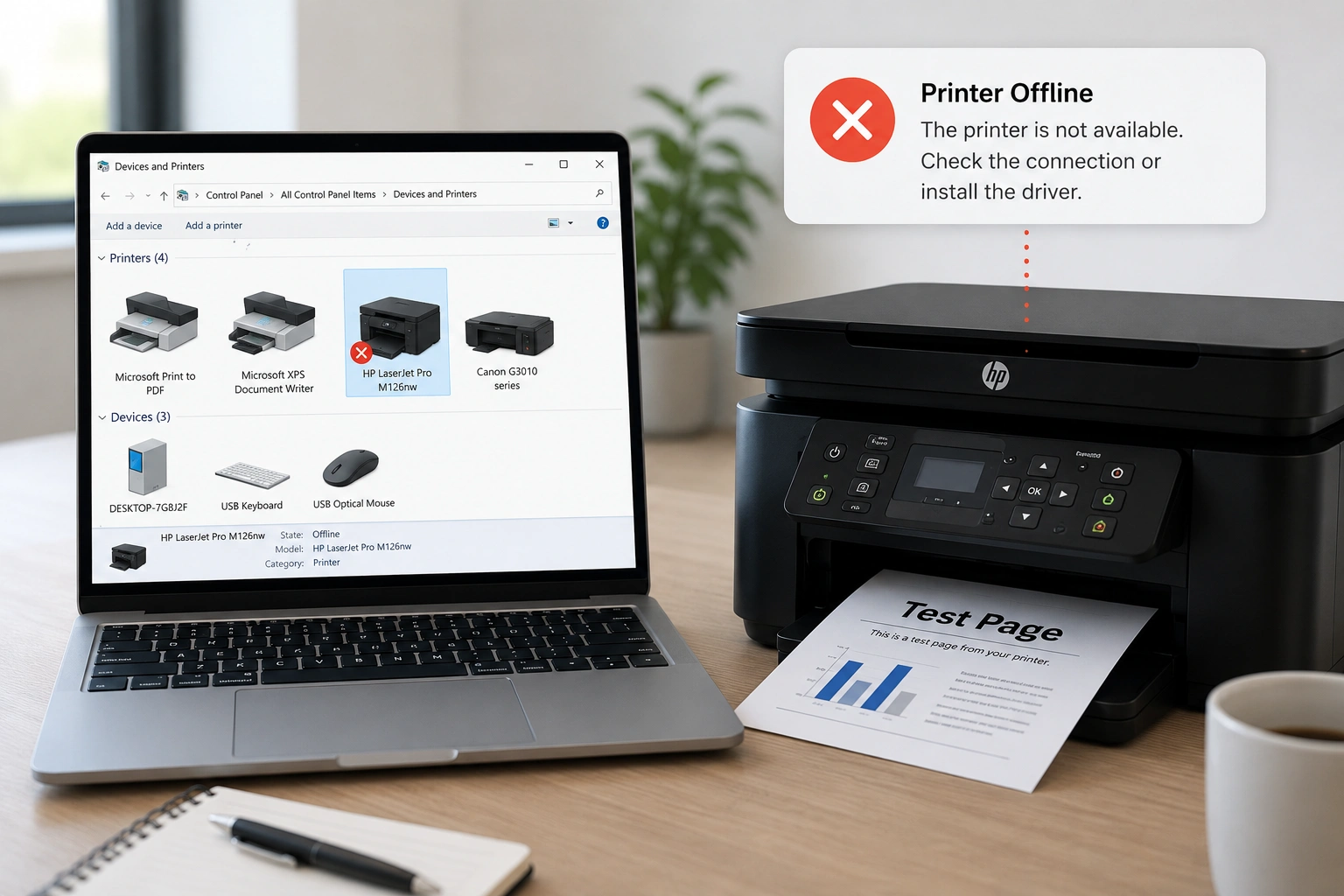
Printer status offline or not printing?
Connecting a printer involves setting up physical or wireless communication. This guide explains how operating systems interface with printer drivers via USB or local Wi-Fi networks.
// QUICK REFERENCE STEPS:- Open Windows Settings > Devices > Printers & Scanners.
- Ensure Default Printer is selected & "Use Printer Offline" is unchecked.
- Restart the Print Spooler service via services.msc to clear stuck queues.
- Reinstall the driver from the official manufacturer support page if offline.
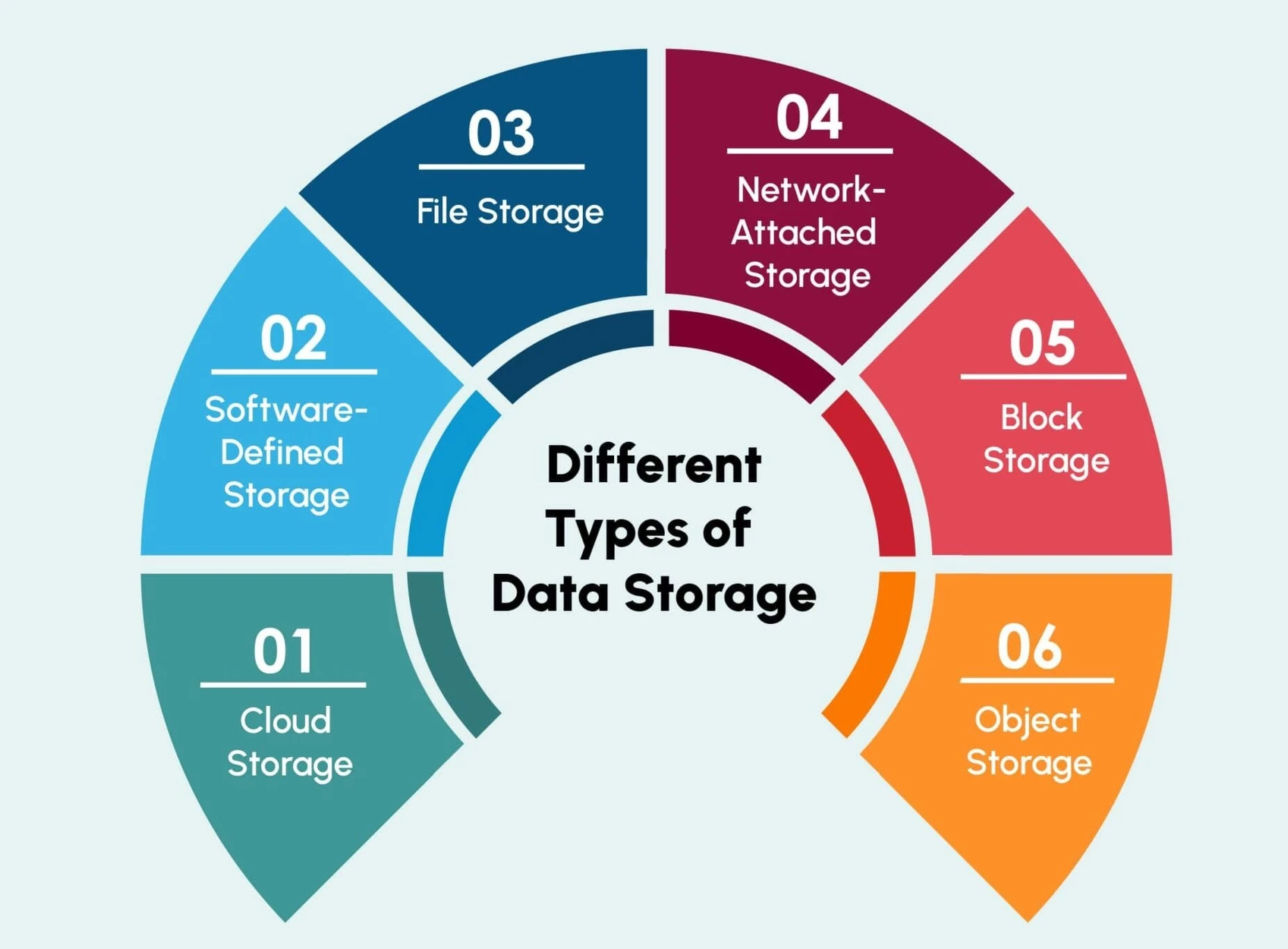
Missing drivers or device not recognized?
Drivers act as software interpreters between the operating system and hardware. Without them, plugged-in devices like adapters or graphics cards cannot interpret instructions.
// QUICK REFERENCE STEPS:- Press Win + X and select Device Manager to inspect driver status.
- Check for yellow warning triangles indicating missing or corrupt drivers.
- Right-click and select "Update driver" to automatically scan online.
- Install official chipset and controller drivers to restore system speed.
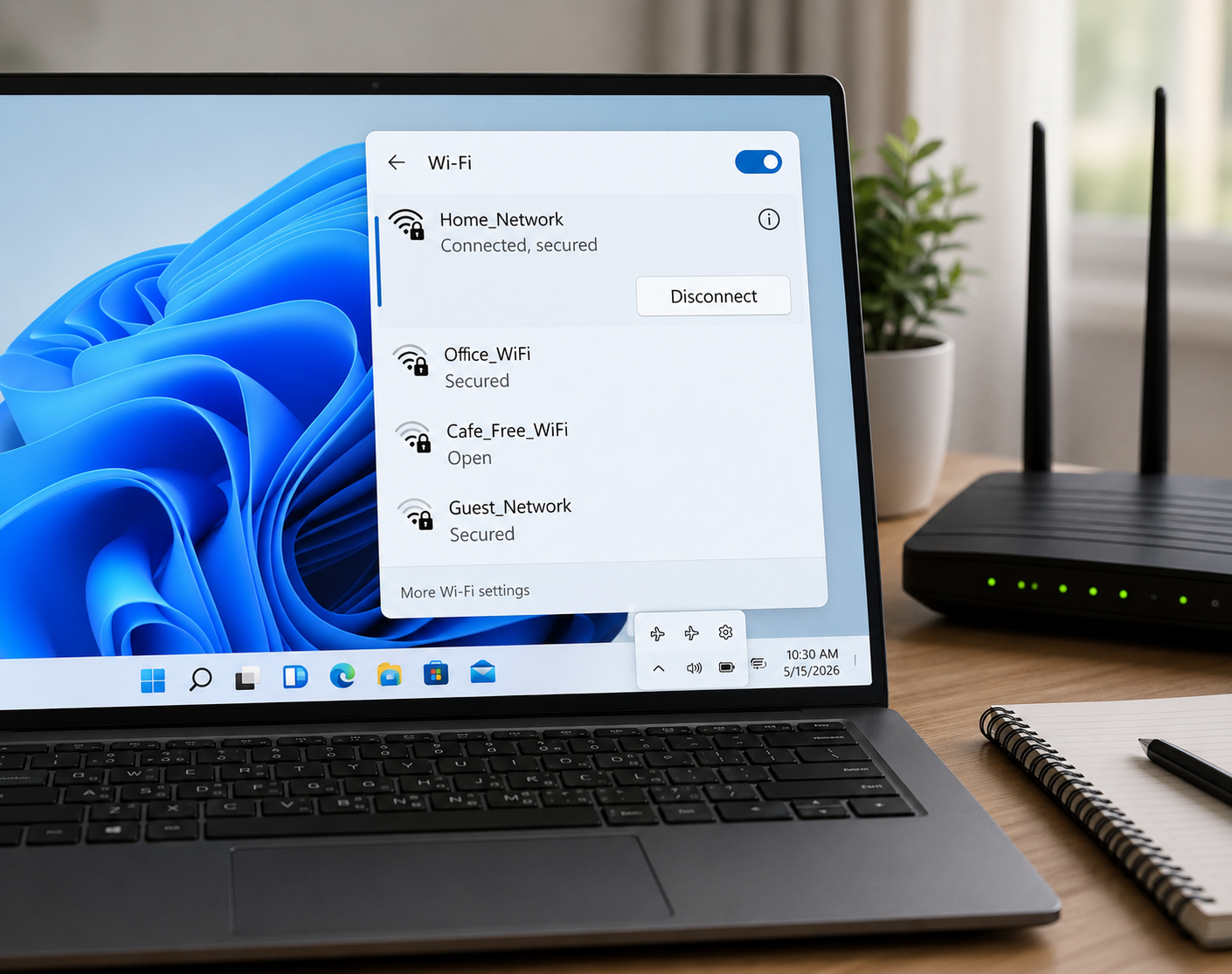
Wi-Fi drops or connected with no internet?
Wireless networking relies on routers transmitting packets to your PC. This guide explains how router signals work, what indicator lights mean, and how to fix connection drops.
// QUICK REFERENCE STEPS:- Verify router lights: DSL/Fiber lights must be solid green (orange means no link).
- Open Command Prompt and run "ipconfig /renew" to refresh DHCP IP allocation.
- Run "ipconfig /flushdns" to clear corrupt DNS cache resolving loading errors.
- Access router gateway (192.168.1.1) to configure security protocols.
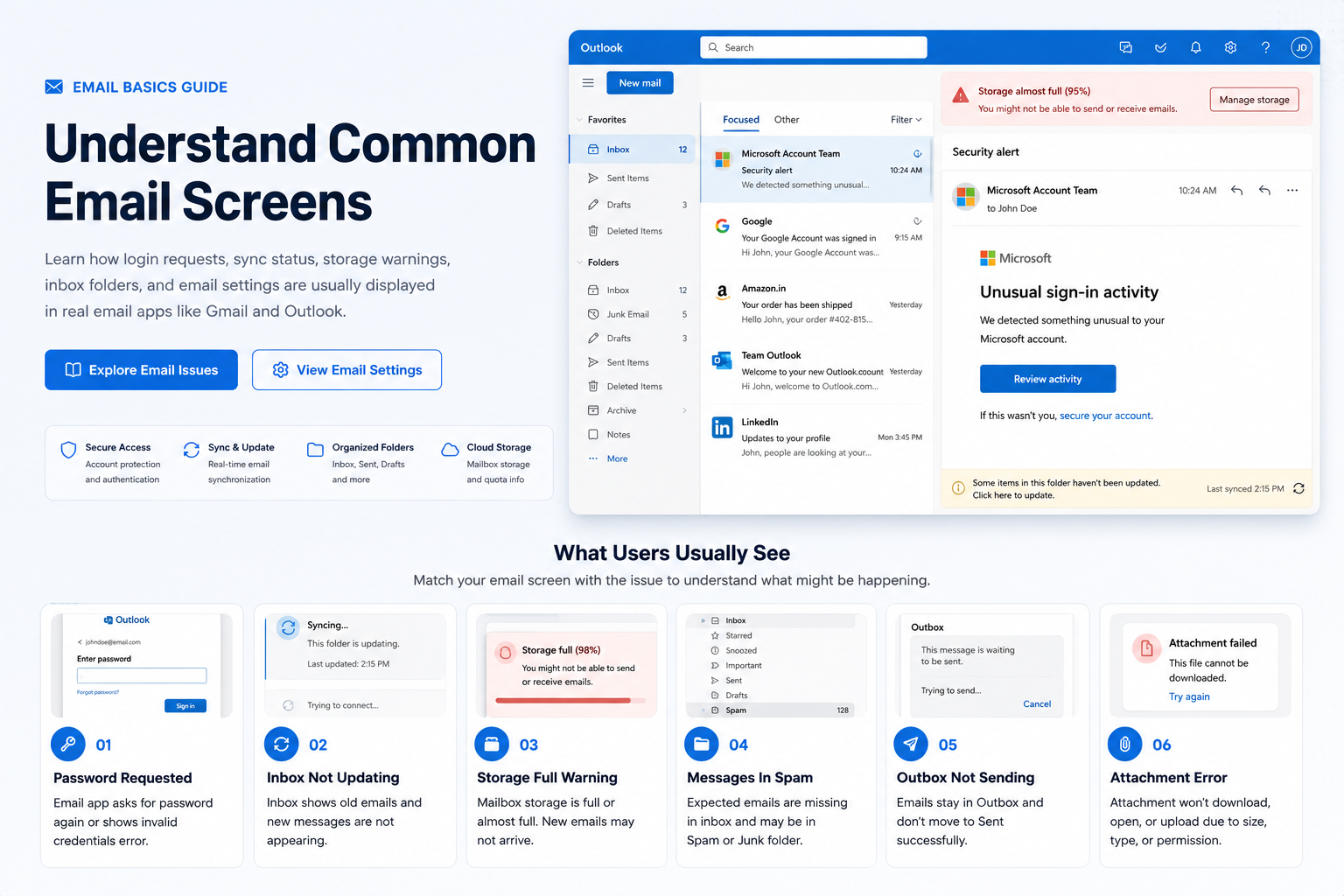
Email client failing to sync or send messages?
Email sync matches local application folders with the remote mail server. Learn server settings, spam folders, and connection port configurations to troubleshoot email errors.
// QUICK REFERENCE STEPS:- Use IMAP (Port 993 with SSL/TLS) instead of POP3 for folder synchronization.
- Configure Outgoing SMTP (Port 465 or 587) with SSL/TLS encryption for mail sending.
- Generate App Passwords or use OAuth2 if login repeatedly fails on older clients.
- Double-check spam/junk folders and storage limit capacity if emails fail to arrive.
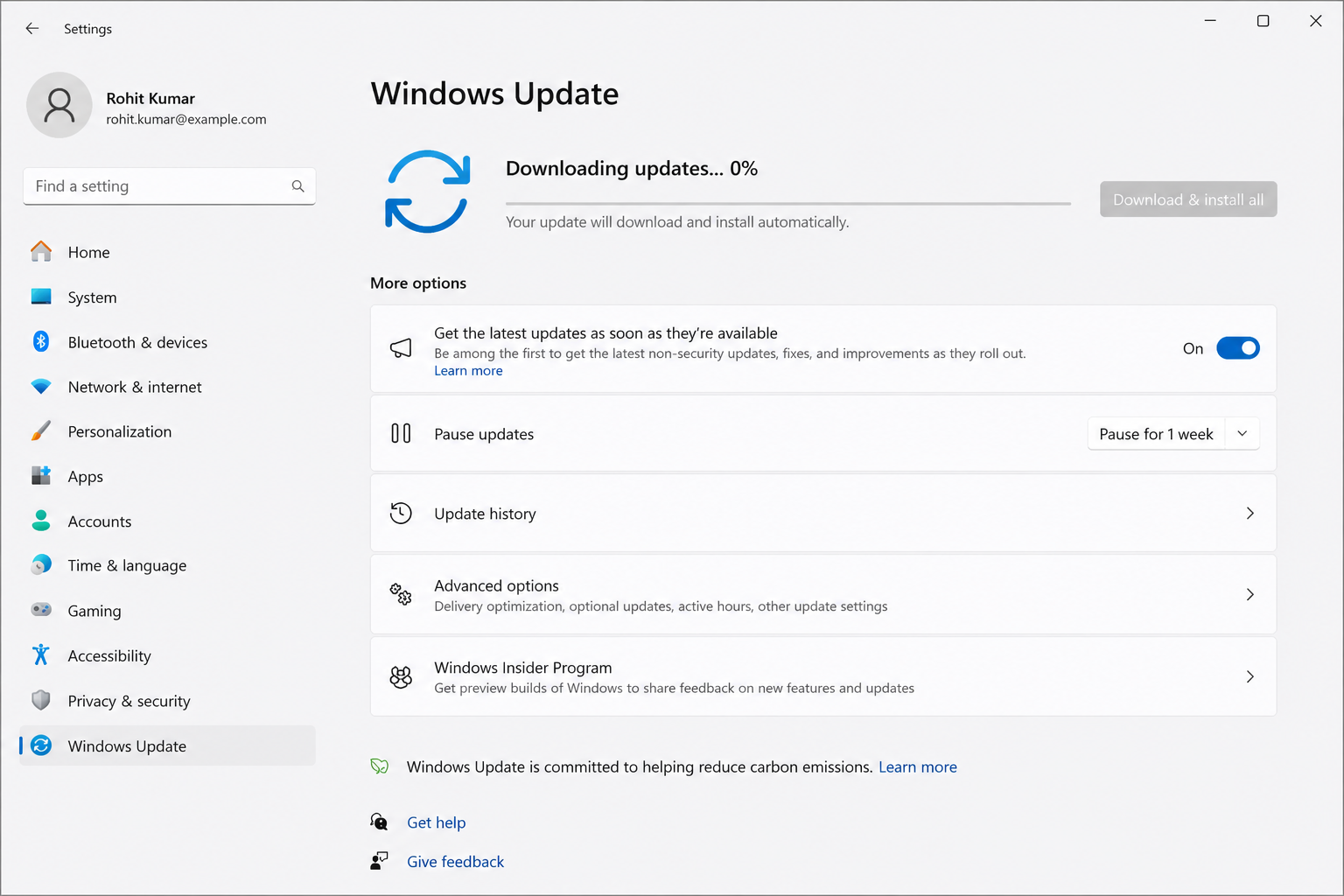
Windows updates stuck or looping restarts?
Operating system updates patch bugs and secure hardware drivers. This guide explains how to fix update errors, stuck downloads, and pending installations safely.
// QUICK REFERENCE STEPS:- Navigate to Settings > Update & Security > Windows Update to view pending logs.
- Run the official built-in Windows Update Troubleshooter to clear loop cycles.
- Delete download cache in C:\Windows\SoftwareDistribution\Download if stuck.
- Configure Active Hours to prevent automatic restarts during work sessions.

Can't find your specific device issue?
If you have a unique printer model, network configuration, or update loop error, send us the details directly. Our mentors will simplify the steps and write a custom guide for you.
// EXPERT MENTOR ASSISTANCE:A simple reading path for every topic.
The guides focus on visual understanding and simple explanations so readers can match common screen scenarios with basic concepts.
Identify the topic
Match common messages, icons, or device behavior with a related learning category.
Read the guide
Follow sections that explain settings, queues, updates, or device information.
Understand meaning
Learn what the topic generally means in everyday computer use.
Review sources
Use official documentation for deeper product-specific reading.
Useful references for deeper reading.
These official sources are included for readers who want to verify product-specific information from original documentation.
Built for reading and general understanding only.
This library explains technology topics in a learning format. It does not provide live tech support, phone support, remote access, repair, installation, software sales, or troubleshooting service.
Continue exploring educational technology topics.
Read detailed articles, visual guides, and source-based explanations about hardware, device drivers, updates, and common computer concepts.